Before enabling your Auto Reply, we recommend to set your timezone to ensure this activates at the expected time and dates.To do this, navigate to Settings -> Preferences -> User Interface -> Set your Timezone. Once configured, make sure to press Save
Out of Office Configuration
To access the Out of Office configuration, log in to your webmail.. Once logged in, navigate to Settings followed by Out of Office.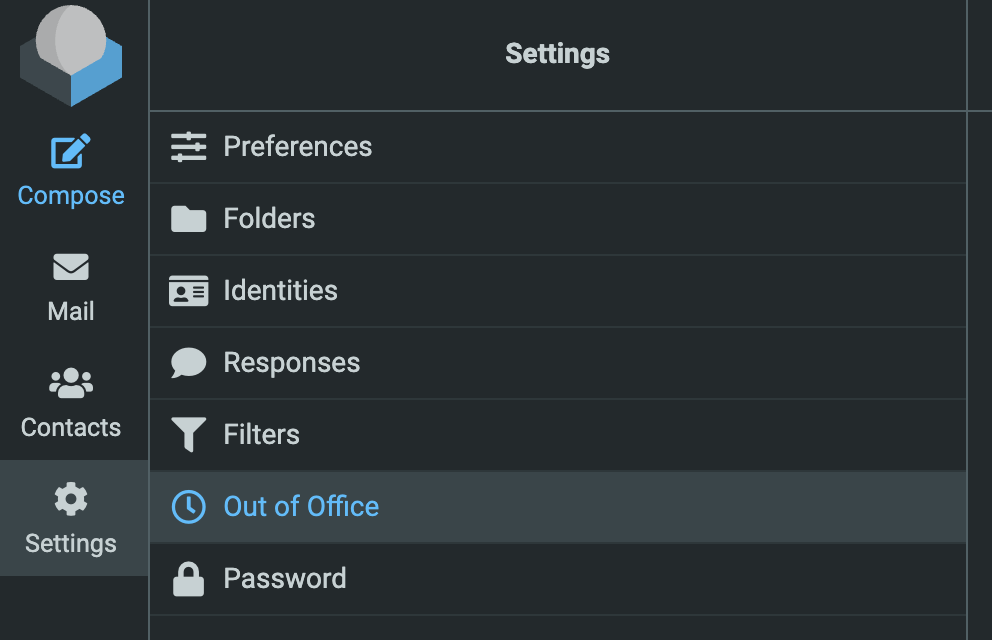
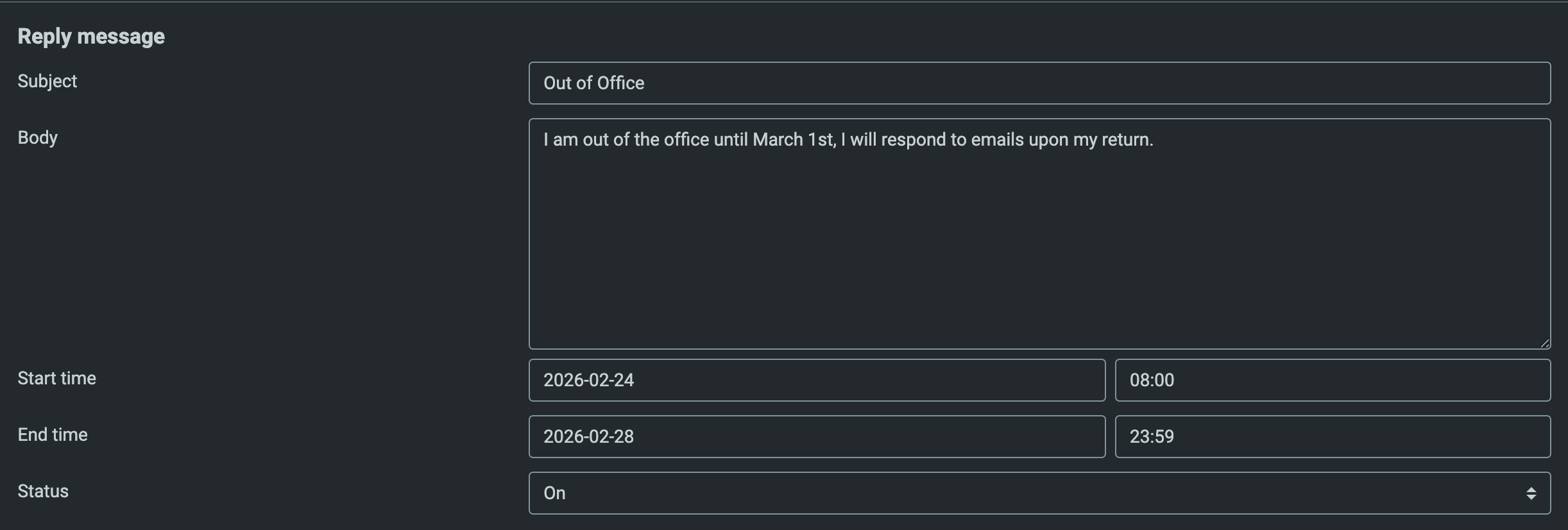
| Field | Description |
|---|---|
| Subject | Configure the subject line that you would like your replies to say - Most commonly people use Out of Office |
| Body | This is the body of the response that you wish to send |
| Start Time | You need to configure your Start Date and Time - If you don’t set a time, this will default to 0:00 on the selected date |
| End Time | You need to configure your End Date and Time - If you don’t set a time, this will default to 0:00 on the selected date |