Creating Mailboxes
Select Create New Mailbox
From here, you will need to configure the mailbox you wish to create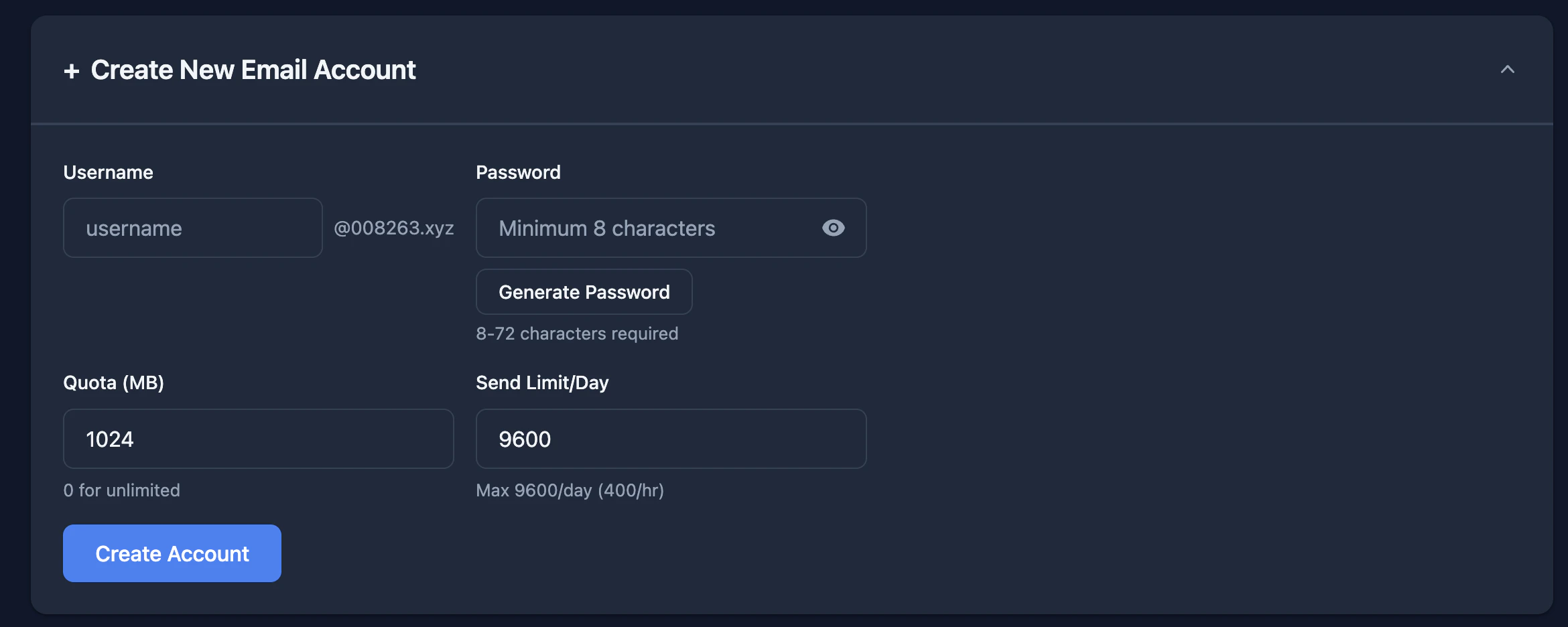
- Username (e.g. bob.smith) - You don’t need to enter your domain
- Password - Make sure to pick a secure password - We recommend using the Generator, or picking a password with a mix of letters, numbers and a special character.
- Quota - This is the mailbox size - This is measued in MB.
- 1024MB = 1GB
- 2048MB = 2GB
- If you want to set no limit - Enter 0
- Send Limit/Day - We recommend leaving this as the default unless you specifically wish to lower this.
Resetting Passwords
Should a user forget their password, you can simple reset this using the Control Panel.Reminder that they will need to reconfigure this in every mail client / device this is set up in.

Enter the new Password (Or Generate a new Password)
We recommend using the Generator, or picking a password with a mix of letters, numbers and a special character. Once you have entered the new password, select Save Changes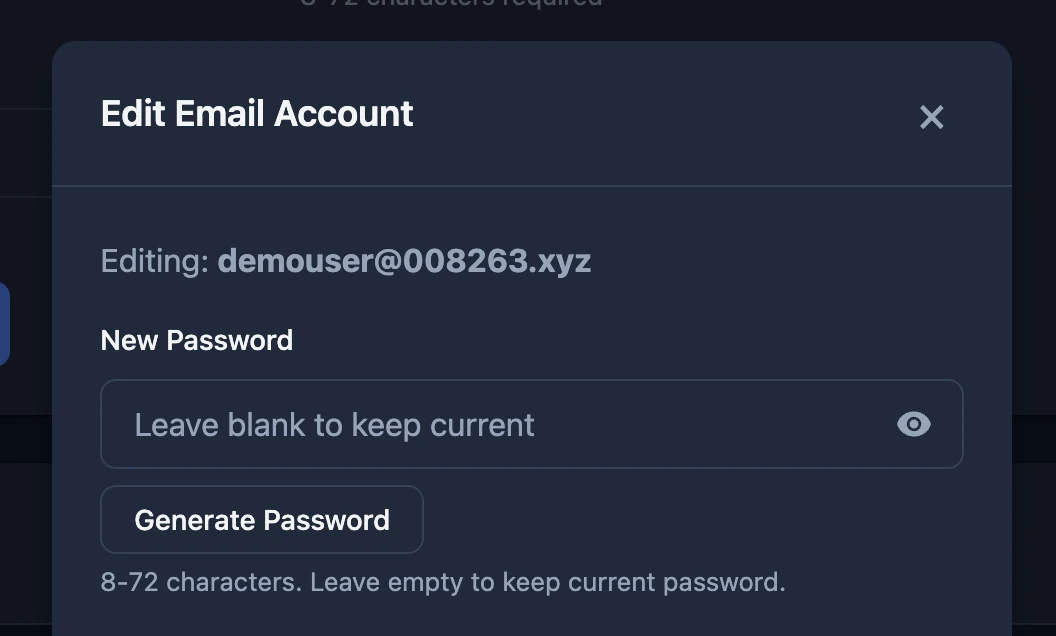
Deleting Mailboxes

Confirm you are sure you wish to delete
A warning will appear to remind you that deleting a mailbox is permanent and cannot be reversed - All emails/data is deleted immediately.
To confirm press Delete Account
To confirm press Delete Account
If you would like to recieve email sent to that address in the future, we’d recommend setting it back up as an Email Forwarder to divert inbound emails to another mailbox - Rather than needing to re-create the mailbox.